
Right now you are doing work by hand that a machine could be doing while you sleep.
Every morning you check the same sources for the same trends. You rewrite the same post for three platforms. You pull the same numbers into the same report. You send the same follow-up email after every call. None of that is thinking — it's repetition. And repetition is exactly what automation takes off your plate.
Most people use Claude like a smarter search bar. They ask a question, get an answer, copy it out, and move on. That's useful, but it's a fraction of what the tool can do.
A workflow is a different animal. A workflow doesn't wait for you to ask. It runs on a schedule or a trigger, it uses real tools to actually do things, and it hands you a finished result instead of a reply. The chat answers. The workflow acts.
This is the shift that changes how your week feels, and most people haven't made it yet. This guide shows you exactly what to build — role by role — and how to ship your first working workflow in about 30 minutes.
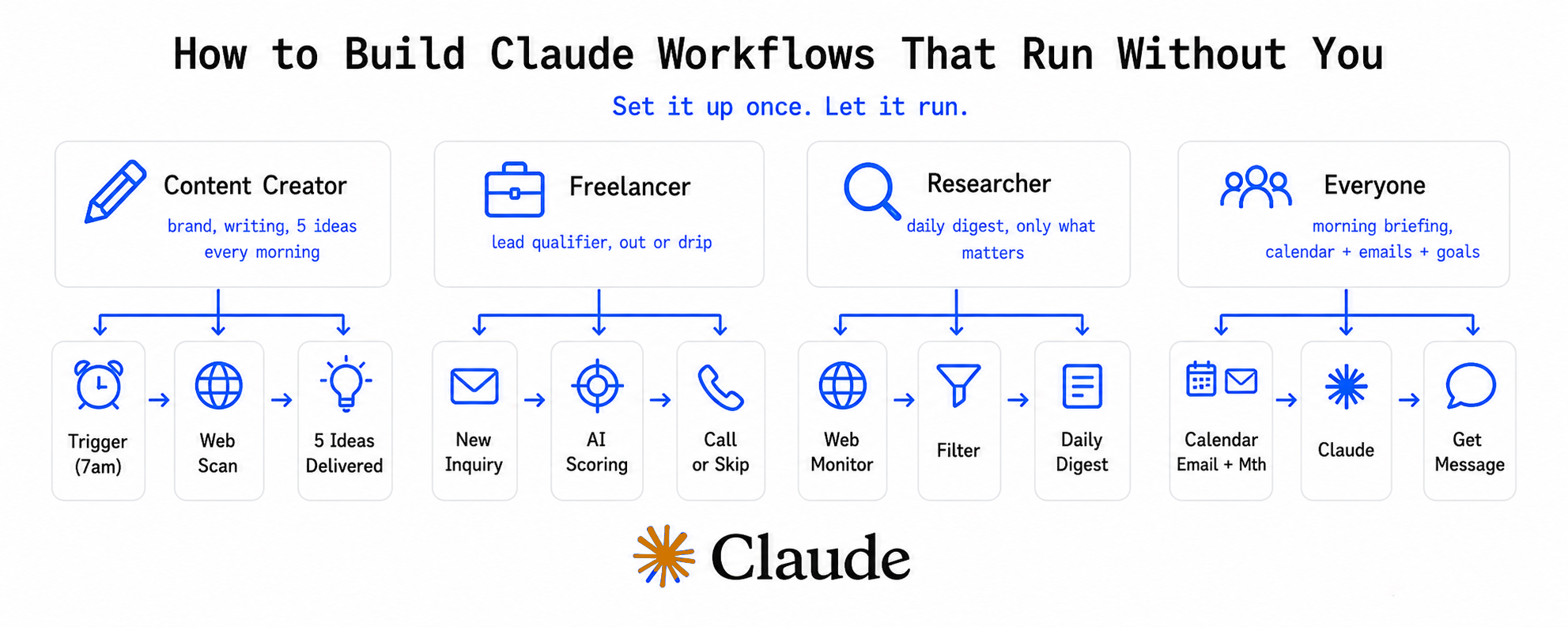
Part 1: What a workflow does that a chat never will
A normal chat with Claude is a conversation. You type, it responds, and the work of acting on that response is still yours. The moment the answer lands, you're back on the clock — copying, pasting, formatting, sending.
A workflow has four parts that a chat doesn't:
- A ROLE — a fixed job written into its system prompt, so it behaves the same way every single time.
- TOOLS — real access to your files, your email, your calendar, the web, a scheduling app.
- A TRIGGER — a time or an event that starts it without you asking.
- An OUTPUT — a defined thing it produces: a report, a draft, an email, a sorted folder.
Put those four together and something quietly profound happens: you stop being the person who does the task and become the person who approves it.
That's the whole shift. And once you see it, you can't unsee how much of your week is just you being a slow trigger for work that doesn't actually need you in the loop.
Part 2: What to actually build, by role
Theory is cheap. Here's what to build depending on what you do all day. For each workflow you get three things: what it does, how much time it gives back, and one concrete example of it in action.
If you're a content creator
Trend workflow. Every morning it scans the sources you care about and sends you five to seven post ideas with the angle already written. That's roughly 45 minutes of manual scrolling saved per day — about five hours a week. In action: you open your phone at 8am and there's a message waiting. "Topic X is spiking. Here's a contrarian take that fits your audience, and here's the hook." You pick one and start writing instead of staring at a blank screen.
Repurpose workflow. You give it one article, and it produces native posts for every platform you run — a thread for X, a carousel outline for LinkedIn, a short script for Reels. That's two to three hours saved per piece. In action: you paste a 1,200-word article, and 90 seconds later you've got a nine-tweet thread, a six-slide carousel, and a 30-second video script — all in your voice, not generic AI mush.
Weekly review workflow. Every Sunday it pulls your week's numbers, finds what outperformed, and tells you why in plain language. That's one to two hours of staring at analytics, gone. In action: "Your three best posts this week were all personal stories posted before 10am. Your worst were product posts. Do more of the first, and move product content to a different format."
If you're a freelancer
Lead qualifier workflow. It reads every inbound message from a prospect and tells you whether they're worth a call — based on budget signals, fit, and intent. That saves hours of back-and-forth with people who were never going to pay. In action: an inquiry comes in and the workflow pings you. "This one mentioned a real budget and a deadline — worth a call. This other one is price shopping — send the template."
Client report workflow. It collects the data for a client, formats it into your report template, and writes the summary. Three to four hours saved per client, per month. In action: end of month, the workflow assembles the numbers, drops them into your template, and writes, "Here's what moved this month and what I recommend next." You review and send.
Sales call prep workflow. Before a call, it researches the prospect and hands you the questions to ask, the objections to expect, and how to position your price. That's an hour of prep per call. In action: you give it a name and a company, and it returns three sharp opening questions, the one objection you're most likely to hear, and the exact line that frames your rate as obvious.
If you're a researcher or analyst
Daily digest workflow. Every day it sends one message with everything that moved in your niche, filtered down to only what matters. One to two hours of reading you'd never get back. In action: 7am, one message. "Three things happened in your space yesterday that you need to know. Here they are in two lines each. Everything else was noise."
Company teardown workflow. You give it a company or a project, and it analyzes it against your fixed template and returns a structured breakdown. Half a day of manual research saved per target. In action: you drop in a company name, and it returns the business model, the revenue signals, the weak points, and the opportunity — in the exact format you always use.
Keyword monitor workflow. It watches the web for your keywords and only pings you when something genuinely relevant shows up. It saves you the cost of checking ten times a day for nothing. In action: you set the keywords once, then silence — until it matters. "Your keyword just appeared in a funding announcement. Here's the link and why it's relevant to you."
If you're anyone, in any role
Morning briefing workflow. One message every morning with your calendar, the emails that actually need you, and the trends in your space. That's 30 minutes of opening five apps before you've had coffee. In action: 7am. "You have two meetings — the 11am needs prep. Three emails need a reply today. And one thing happened overnight you'll want to see."
File organizer workflow. It sorts your files and notes into the right places automatically — by topic, by client, by date. It saves you from the slow erosion of a messy desktop. In action: you dump everything into one folder, and the workflow files it where it belongs and tells you what it did.
Follow-up workflow. After a meeting it drafts the follow-up email with the next steps already pulled from your notes. It saves you the 20 minutes you usually skip — which is exactly why follow-ups don't happen. In action: the meeting ends, and a draft is already waiting. "Here's the recap and the next step. Want me to send it?"
Part 3: How it works, in plain language
Forget the technical version for a second.
A chat is a single question and a single answer. The moment it's done, it's done. Nothing happens until you type again.
A workflow is a worker with a job description. You write down who it is and what it's responsible for. You give it the tools to do that job. You tell it when to start. And you tell it what to hand you when it's finished. That's it.
Four pieces, every time:
- ROLE — the job, written as a system prompt.
- TOOLS — what it's allowed to touch: files, email, web, calendar, a scheduler.
- TRIGGER — what starts it: a time every day, or an event like a new email.
- OUTPUT — the finished thing it gives you.
Here's the test for whether something can be a workflow: if you can describe the task to a new assistant in five sentences, you can build it. No code, no jargon, no setup wizard with 40 fields. Five plain sentences and four pieces.
Part 4: How to build one, step by step
Step 1 — Write the system prompt with a role and a goal
This is the single most important part. You're hiring, so write the job description. Here's the skeleton:
You are a [role] for me.

Your job is to [the one outcome you want] every [when].

You care about [what good looks like] and you avoid [what bad looks like].

When you're done, give me [the exact format of the result].

Be specific and concrete. Never give me filler or generic output.
The more specific the role, the better the result. "You are a content strategist who finds contrarian angles for a crypto and AI audience" beats "you help with content" every time. Vague roles produce vague work — the prompt is where you set the bar.
For the structure that keeps a long system prompt clear to Claude, such as XML tags, examples and an exact output format, see our Claude prompting playbook.
Step 2 — Connect the tools it needs
A workflow with no tools is just a chat. Decide what this job actually touches:
- Files for reports, drafts, and organizing.
- Email for follow-ups and inbox triage.
- Calendar for briefings and scheduling.
- The web for trends, research, and monitoring.
- A scheduling app for publishing content.
Give it only what the job needs — nothing more. A lead qualifier needs email; it doesn't need your calendar. Scoping tools tightly keeps the workflow focused and keeps you in control of what it can reach.
Step 3 — Set the trigger
Decide when it runs. You've got two options:
- A schedule — every morning at 7am, every Sunday night, every hour.
- An event — when a new email arrives, when a file lands in a folder.
For your first workflow, use a schedule. It's the simplest, and it's where most of the value lives.
Step 4 — Define what it does with the result
Tell it exactly where the output goes. Send me a message. Save a file to this folder. Draft an email but don't send it. Post to my scheduler as a draft for approval.
For anything that goes to other people, keep yourself in the loop. The workflow drafts, you approve — at least until you trust it. That single rule is what makes automation safe to adopt: nothing leaves the building without your sign-off until you've watched it get the job right a few times.
Step 5 — Test it, then tune it
Run it once by hand before you let it loose on a schedule. Look at the output, then fix the prompt.
The first run is never perfect. You'll catch it being too generic, missing context, or formatting something wrong. So you go back to the system prompt and add the missing instruction. Three or four rounds of this and the workflow is doing the job exactly how you would — which is the whole point. You're not training a model; you're refining a job description until it matches the one in your head.
How to set it up in Claude Cowork
Everything above is the concept. This part is the buttons you actually click. We'll wire up the morning briefing workflow end to end, and once you've done it, you'll have the exact pattern for every other workflow in this guide.
Connect the tools the briefing needs
The briefing needs three things: your email, your calendar, and the web. You connect each one from the same place — click the plus sign in the chat bar (or type a forward slash) and open Connectors.
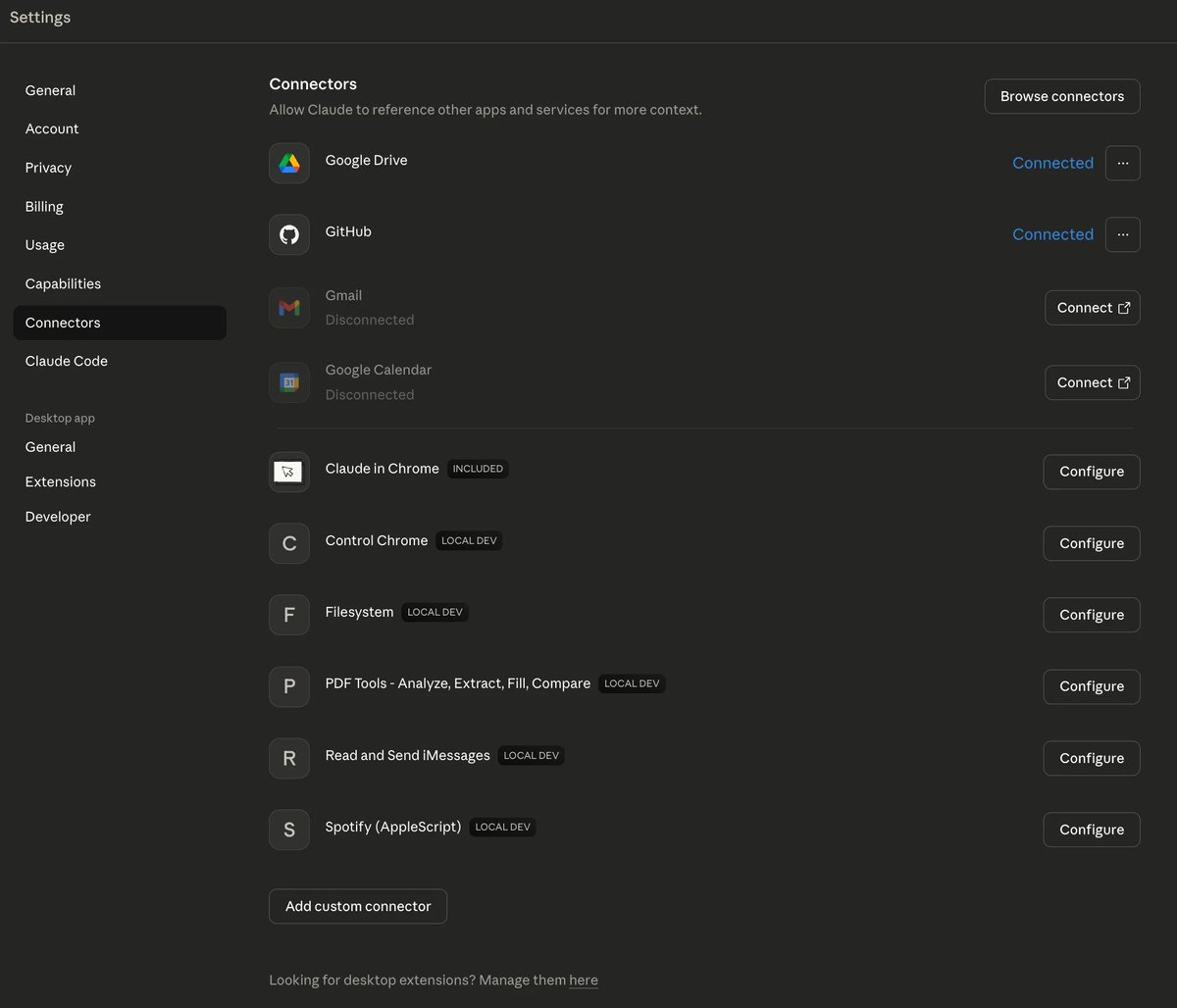
Gmail. Find Gmail in the Google Workspace list and click Connect. A secure Google login window opens — sign in with the account you actually use and grant the permissions it asks for. That one Google login covers Gmail, Calendar, and Drive together. To check it worked, start a new chat and type, "Summarize my three most recent unread emails." If it pulls back real messages, you're connected. If you hit an "access blocked" error, your workspace admin needs to whitelist Claude first.
Google Calendar. Same place. If you already signed into Google for Gmail, Calendar is usually live on the same login. If it shows as separate, click Connect and approve the calendar permissions. Test it with, "What's on my calendar today?" — if it lists your real events, you're set.
Web search. This one isn't a Google login — it's a built-in capability. In the same connectors and tools menu, make sure web search is toggled on. There's no separate account to sign into; it just needs to be enabled. Test it with, "Search the web and tell me one thing that happened in [your niche] today." A fresh link back means search is on.
Set it up as a scheduled task
Connectors give the workflow its hands. The scheduled task gives it a clock — and that clock is what makes it run without you.
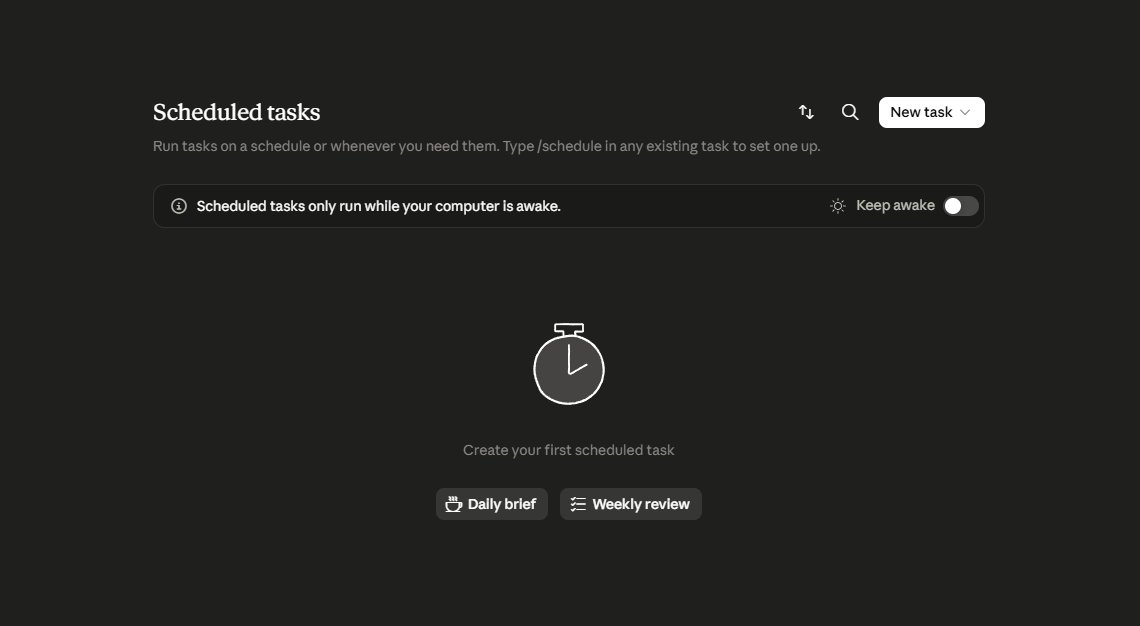
From the same plus-sign or slash menu, open Scheduled tasks — this is where anything that runs on a timer lives. Then:
- Create a new task and paste in the morning briefing prompt below, brackets filled in with your niche.
- Set the time to run every day at 7am — or whenever you want the briefing waiting for you. Daily is the right cadence for this one.
- Run it once by hand. Before you trust the schedule, trigger it manually, read what it sends, and fix the prompt if it's too generic or missing something. Same tune step as Part 4, just on the real thing.
- Leave the schedule on. Once the manual run looks right, you're done. It now fires every morning on its own, and the briefing is there before you open anything.
One thing to know: scheduled tasks only run while your computer is awake. If you want a 7am briefing waiting for you, leave your machine on overnight (there's a "Keep awake" toggle for exactly this).
For every other workflow in Part 2, you follow these same steps. You just swap the prompt and connect different tools for the job.
Part 5: What to change for each use case
Same five steps every time. Here's exactly what changes per workflow — notice how little actually moves.
Trend workflow (content). Prompt: "You are a trend scout for a [niche] audience — find me angles, not just news." Tools: web. Trigger: daily, early morning. Output: a message with five to seven ideas and hooks.
Repurpose workflow. Prompt: "You turn one article into native content for [your platforms] — match my voice from these examples." Tools: file access for the source. Trigger: event, when you drop in a new article. Output: a file or message with one draft per platform.
Lead qualifier. Prompt: "You score inbound leads on budget, fit, and intent — tell me call or skip." Tools: email. Trigger: event, new inquiry arrives. Output: a one-line verdict plus a reason.
Client report. Prompt: "You build my monthly client report in this exact template and write the summary." Tools: file access, plus wherever the data lives. Trigger: monthly schedule. Output: a finished report file, ready to review.
Daily digest. Prompt: "You monitor [niche] and send me only what matters — filter hard." Tools: web. Trigger: daily schedule. Output: a short message, two lines per item.
Morning briefing. Prompt: "You give me my day in one message — calendar, urgent email, one relevant trend." Tools: calendar, email, web. Trigger: daily, before work. Output: one message, nothing more.
You're not learning six different skills here. You're changing the role line, the tools, and the trigger. The machine underneath is identical every time.
Part 6: Your first workflow in 30 minutes
Don't build the complicated one first. Build the morning briefing. It's the simplest, it touches the most useful tools, and you'll feel the value the next morning.
Here's the prompt. Copy it and fill in the brackets:
You are my morning briefing workflow.

Every morning at 7am, send me one message with three sections:

1. TODAY — my calendar for the day. Flag any meeting that needs prep.
2. INBOX — only the emails that actually need a reply today. Skip newsletters and noise.
3. SIGNAL — one thing that happened in [your niche] in the last 24 hours
   that I'd want to know. Two lines max.

Rules:
- One message. No preamble, no sign-off.
- If a section is empty, say so in one line and move on.
- Never pad it with filler. I want the shortest version that's still complete.
Now do the four steps:
- Paste that as the system prompt.
- Connect calendar, email, and web.
- Set it to run every day at 7am.
- Tell it to send the result as a message.
Run it once by hand tonight, read the output, fix anything that's off — then let it run tomorrow on its own.
That's a real workflow, working for you, before lunch.
Frequently asked questions
What is the difference between a Claude chat and a Claude workflow?
A chat is a single conversation: you ask, Claude answers, and acting on that answer is still your job. A workflow has four parts a chat doesn't: a fixed role written into its system prompt, real tools (files, email, calendar, web, a scheduler), a trigger that starts it without you asking, and a defined output it produces. The chat answers; the workflow acts. A workflow runs on a schedule or an event and hands you a finished result instead of a reply.
What are the four parts of a Claude workflow?
Every workflow has a ROLE (a fixed job written as a system prompt), TOOLS (real access to your files, email, calendar, the web, or a scheduling app), a TRIGGER (a time or event that starts it without you asking), and an OUTPUT (a defined thing it produces: a report, a draft, an email, a sorted folder). Put those four together and you stop being the person who does the task and become the person who approves it.
What is the easiest Claude workflow to build first?
The morning briefing workflow. It's the simplest to set up, it touches the most useful tools (calendar, email, and web), and you feel the value the very next morning. You connect those three tools, paste a system prompt that asks for your calendar, the emails that need a reply, and one relevant trend, set it to run daily at 7am, and run it once by hand to tune it before letting it run on its own.
How do you set up a scheduled task in Claude Cowork?
In the chat bar, click the plus sign or type a forward slash, then open Scheduled tasks. Create a new task, paste in your workflow prompt, set the time it should run (for a morning briefing, daily at 7am), run it once manually to check the output, then leave the schedule on. Note that scheduled tasks only run while your computer is awake.
Do I need to know how to code to build a Claude workflow?
No. If you can describe a task to a new assistant in five sentences, you can build it as a workflow. You write the role as plain-English instructions, connect the tools the job needs by clicking Connect, set a trigger, and tell it what to hand you when it's done. There is no code involved.
What changes after your first one
The first workflow is never the one that matters most. The briefing saves you 30 minutes — that's not really the point.
The point is what happens in your head after you watch it run. You stop seeing your week as a list of tasks and start seeing it as a list of jobs you can hand off. The repurpose workflow becomes obvious. Then the report workflow. Then the lead qualifier. And within a month, the question flips from "how do I do this?" to "should I be doing this at all — or should a workflow?"
The barrier was never the technology. It was thinking of yourself as the person who has to do the work.
That mental shift — from operator to director — is the same one we build entire systems around at Fade Digital, where the goal is always to put AI to work on the repetitive parts so the human can focus on the parts that actually need judgment. You don't need an agency to start, though. You need one evening and one good prompt.
Build the briefing workflow tonight. That's where it starts. You'll thank me later.