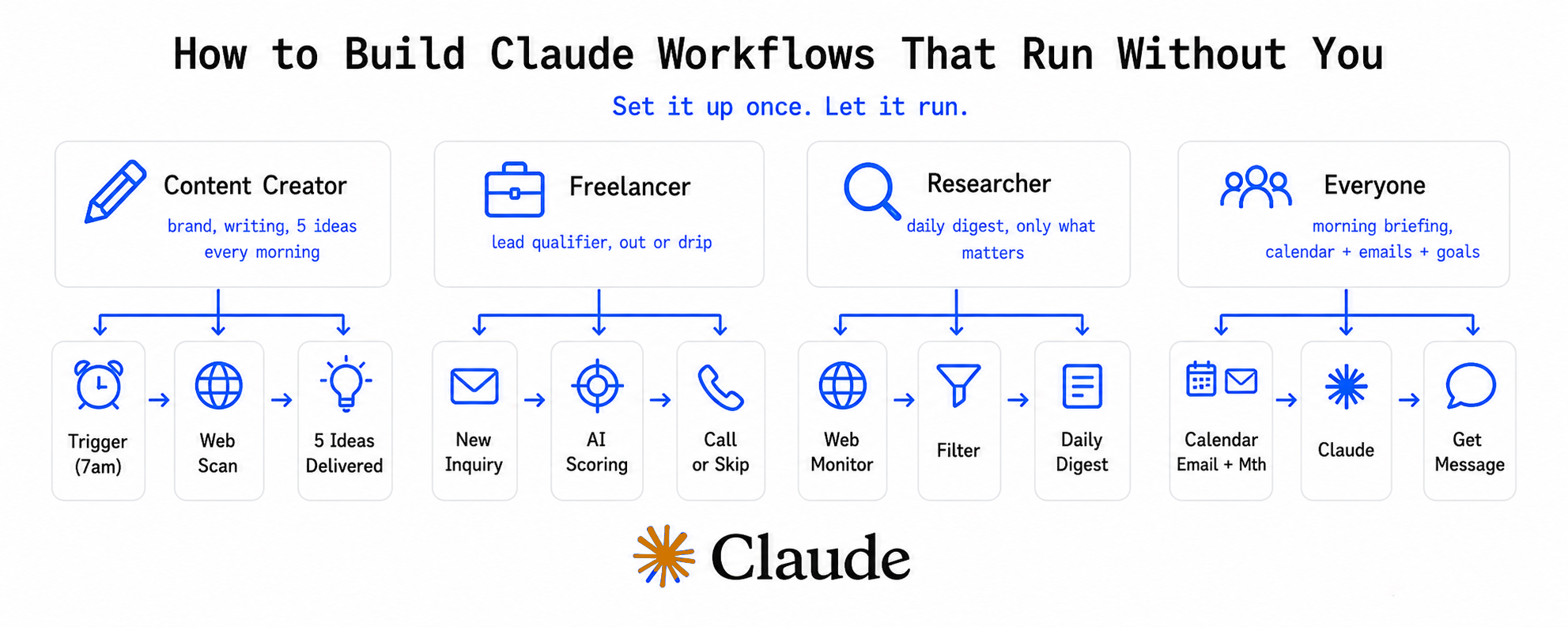
Your laptop is sitting on your desk. Claude is running. And you're at your kid's soccer game, on the subway, or in a back-to-back meeting with no laptop in sight.
With Claude Dispatch, that's not a problem — it's a workflow.
Dispatch is one of the most underused features in Claude's ecosystem right now. It turns your phone into a command center and your desktop into an autonomous execution engine. You think, you direct, Claude executes — across multiple parallel workstreams, asynchronously, while you live your life.
This post breaks down exactly how it works, who it's for, and how to get the most out of it.
What Is Claude Dispatch?
Claude Dispatch is an orchestration layer built into Claude that lets you manage multiple AI task sessions simultaneously from a single mobile conversation.
Think of it less like a chatbot and more like a remote work delegation system:
- Your phone = the orchestrator (you give direction)
- Your desktop = the executor (Claude does the work via Cowork)
- Multiple Cowork sessions = independent sandboxed tasks running in parallel
Instead of waiting for one task to finish before starting the next, Dispatch lets you fire off several workstreams at once, check back in when they're done, and keep your day moving.
How It's Different From Regular Claude Chat
Most people use Claude in a back-and-forth, sequential pattern — you ask, it answers, repeat. That works fine at your desk. But Dispatch is built for a different mode:
| Mode | How It Works | Best For |
|---|---|---|
| Standard Chat | Sequential, one request at a time | Quick questions, brainstorming |
| Dispatch (Mobile) | Orchestrate multiple async tasks from phone | Directing work during gaps in your day |
| Cowork (Desktop) | Full-featured execution with connectors | Deep work, file access, tool use |
| Web Sessions | Remote coding and prototyping | Technical work away from your machine |
| Channels | Scheduled/event-driven automation | Recurring tasks, triggered workflows |
Dispatch sits above Cowork — it delegates to it. You're the manager on the go; Cowork is the team at the office.
The Architecture in Plain English
Here's what happens when you use Dispatch:
- You open Claude on your phone and describe what you need done
- Dispatch spins up one or more independent Cowork sessions on your desktop
- Each session has its own sandboxed context — they don't interfere with each other
- Claude executes each task using whatever connectors you've configured (Gmail, Notion, Slack, Google Drive, etc.)
- You check back in later, review the outputs, and redirect if needed
Your desktop needs to be awake with the Claude app running — but you don't need to be at it.
Real Use Cases (From 48 Hours of Testing)
The person who documented this workflow ran 60+ task sessions across a single weekend. Here's what that looked like in practice:
While Having Morning Coffee
- Directed competitor research across three different markets simultaneously
- Each research session ran independently — no context bleed between them
On the Subway
- Drafted a sponsorship page outline while commuting
- Sent review notes on a document Claude had already prepared
At a Kids' Activity
- Iterated on infographic designs from the sidelines
- Provided creative direction, reviewed outputs, approved next steps — without touching a laptop
During Back-to-Back Meetings
- Queued up four tasks before the first meeting started
- Checked results between meetings and redirected where needed
The split: You provide ~90% of the thinking and judgment. Claude handles ~90% of the research, formatting, and execution.
Setting Up Claude Dispatch: Step by Step
Step 1: Configure Cowork on Your Desktop
Dispatch delegates to Cowork, so Cowork needs to be set up first. Connect the services you use most — common ones include:
- Gmail — for drafting, reading, and sending emails
- Notion — for notes, databases, and docs
- Slack — for message drafts and channel reads
- Google Drive — critical for file sync (more on this below)
Step 2: Define Folder Shortcuts Early
One of the friction points with Dispatch is that mobile lacks a folder picker UI. You can't browse your file system from your phone — you have to describe paths in natural language.
Fix this before you leave your desk:
"My main workspace is at
/Users/yourname/Projects/client-work. Call this my 'workspace'." "My writing drafts are in~/Documents/Drafts. Call this 'drafts'."
Setting these shortcuts at the start of a session means you can reference them naturally from your phone later without typing full system paths.
Step 3: Feed It Your CLAUDE.md First
If you've built a CLAUDE.md file (a knowledge document that tells Claude how you work, your preferences, your brand voice, etc.), ask Dispatch to read it before delegating any tasks.
Before we start, please read my CLAUDE.md file at ~/Projects/CLAUDE.md
so you understand my workflow preferences and brand guidelines.
This ensures every subtask Claude spawns inherits your rules and context — otherwise each Cowork session starts blind.
Step 4: Sync Your Workspace to Google Drive
Dispatch can't attach files from your phone or push files directly to your device. The workaround is simple: sync your workspace folder with Google Drive.
This creates bidirectional file flow — Claude writes to your local workspace folder, Google Drive syncs it, you can review from your phone.
Step 5: Start Dispatching
Now from your phone, you can give parallel instructions:
"I need three things done: 1) Research the top 5 competitors for [client] and summarize their positioning in a Google Doc. 2) Draft a follow-up email to the list we discussed. 3) Pull the key stats from last month's traffic report in my workspace and format them for a slide deck."
Dispatch will spin up independent sessions for each and work through them asynchronously.
The Gotchas You Need to Know
Subtask Approval Requirements
Each subtask Dispatch delegates will request separate folder access approvals on your desktop. There's no batch approval — Claude will prompt for each one individually.
Workaround: Before you leave your desk, pre-approve the folders you know you'll need. Think through your task list in advance and get the permissions sorted upfront.
Knowledge Context Doesn't Carry Automatically
Each Cowork session starts fresh. If you want Claude to know your preferences, write them into CLAUDE.md and reference it explicitly at the start of every Dispatch session.
Your Desktop Must Stay On
Claude can't execute on your desktop if it's asleep. This is the hard requirement. Solutions:
- Adjust your Mac's energy settings to prevent sleep when on power
- Use a tool like Amphetamine (Mac) to keep it awake
- Leave it charging before you head out
File Transfer Still Has Limits
You can't upload files from your phone to Dispatch sessions, and Claude can't send files directly to your phone. Google Drive sync is your bridge.
The Real Unlock: Building a Knowledge System That Compounds
Here's the strategic insight that separates people who get 10x value from Dispatch vs. people who just think it's neat:
The surfaces change. Your knowledge system compounds.
Anthropic will keep releasing new features — Dispatch, Channels, whatever comes next. But the people who get compounding returns from these tools are the ones who've built:
- A CLAUDE.md file — your preferences, your brand voice, your rules, your shortcuts
- Skill libraries — reusable prompt templates for your most common tasks
- Workflow templates — documented sequences for recurring work (weekly reporting, client onboarding, content production)
Store this system on GitHub. Every Claude surface can access it from your machine. Web Sessions clone it automatically. As you refine it, every session gets smarter.
Two professionals with identical Claude access diverge dramatically over months — the one who built a structured knowledge system vs. the one who uses tools reactively. The system amplifies your thinking. It doesn't replace it.
Who Gets the Most Value From Dispatch?
Dispatch is highest-leverage for people who:
- Have a lot of small decision-making moments spread across the day (between meetings, on transit, picking up kids)
- Run multiple concurrent workstreams — client work, their own content, admin, research
- Are comfortable directing work remotely rather than executing it hands-on
- Have already built some Claude habits and want to extend them asynchronously
It's less useful if you need to be deeply embedded in every task as it happens, or if your work requires real-time back-and-forth judgment calls that can't be batched.
A Sample Dispatch Workflow for a Busy Monday
Here's what a realistic Monday could look like with Dispatch running:
7:00am — Before leaving home:
- Tell Dispatch to read CLAUDE.md
- Pre-approve workspace folder access on desktop
- Queue 3 tasks: client research, email draft, weekly report pull
8:30am — On commute (phone):
- Check progress on the three tasks
- Add notes on the client research direction
- Queue a fourth task: draft social captions from the blog post Claude finished yesterday
10:00am — Between meetings:
- Review email draft, send back two edits
- Approve the social captions
- Queue a competitor analysis
12:00pm — Lunch:
- Review the competitor analysis
- Ask Dispatch to turn it into a formatted slide summary
3:00pm — Back at desk:
- All deliverables are ready
- Review, refine, ship
That's a full morning of output produced during time that previously went nowhere.
Getting Started Today
You don't need a perfect system to start. Pick one recurring task that usually waits until you're back at your desk — a weekly summary, a client briefing, a draft email series — and run it through Dispatch this week.
The compounding starts with the first session.
Want AI working for your business?
Find Out How AI Sees Your Brand Right Now
We audit how ChatGPT, Gemini, and Perplexity represent your business — and build a strategy to make AI recommend you first.
Get Your Free AI Visibility Audit →